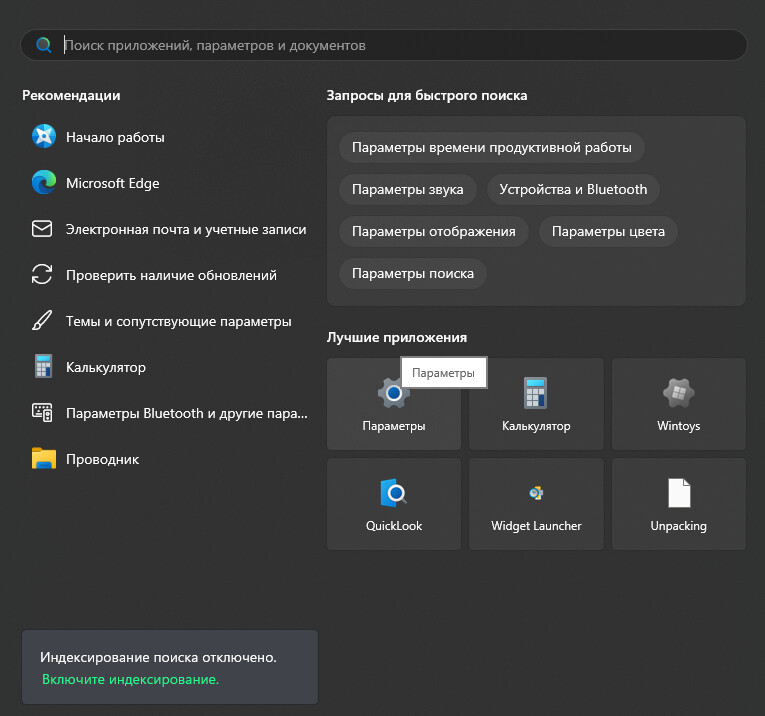
1. Go to «Settings/Options» on your device.
2. Select «Network and Internet» from the list. Then click on the «VPN» page and click «Add VPN».
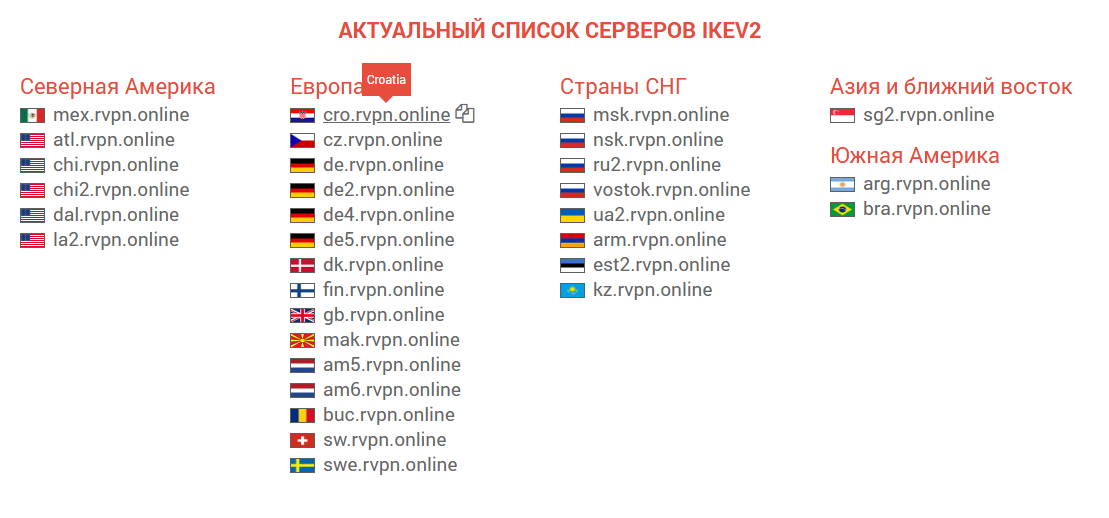
3. On the ru.rvpn website in the «Current List of IKEV2 Servers» section, click on the desired server location to copy the data.
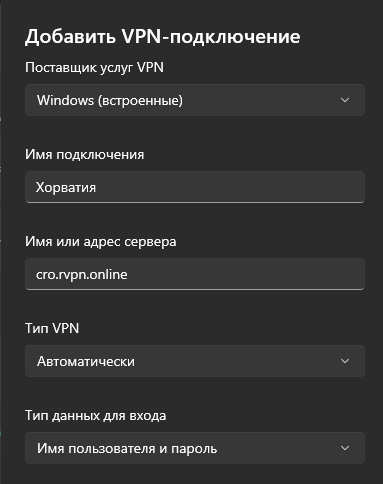
4. Returning to the «Add VPN Connection» window, enter the server location name in the «Connection Name» field, and paste the data copied from the website into the «Server Name or Address» field.
5. On the ru.rvpn website, in the «Connection Details» section, copy your login and password and paste them into the «Username» and «Password» fields respectively.
6. After successfully adding the connection, click the «Save» button.
7. To enable VPN, click the «Connect» button on the connection you created.