Let’s see how to install VPN technology L2TP/IPSec on your computer.
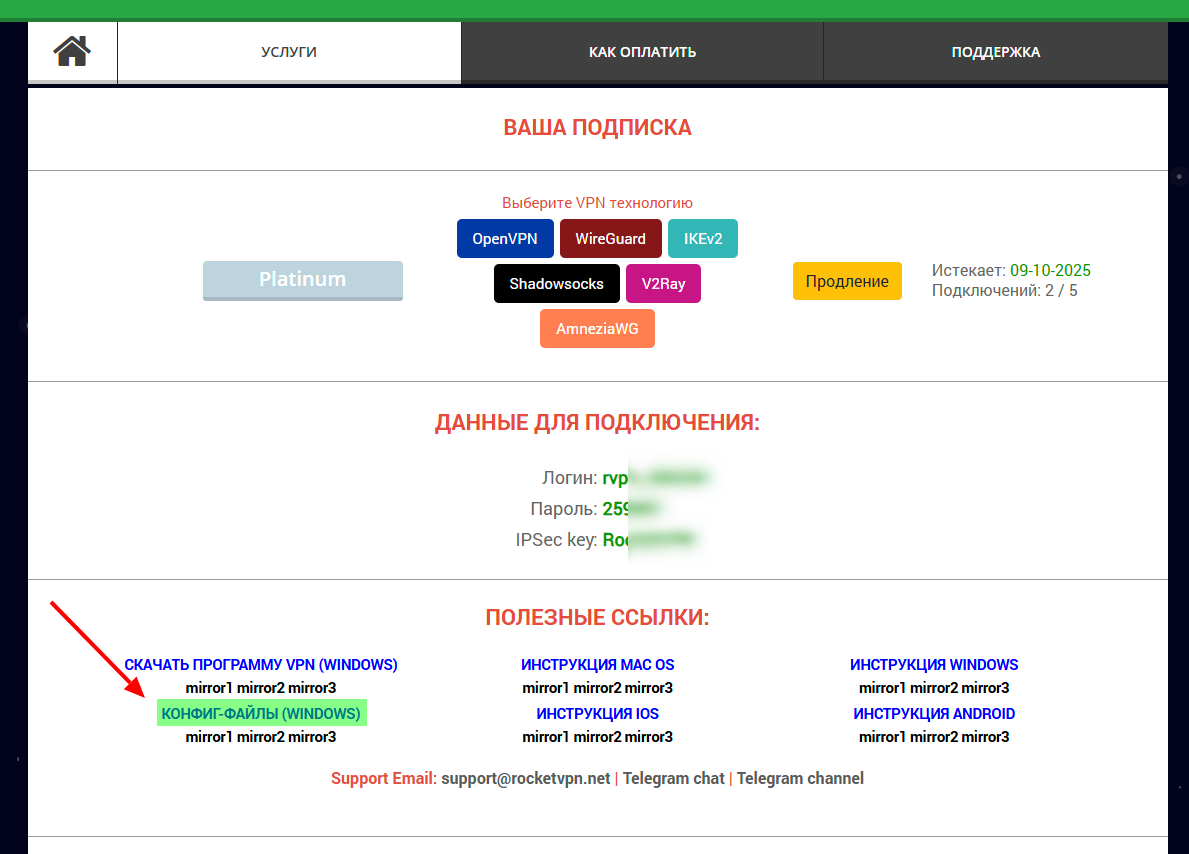
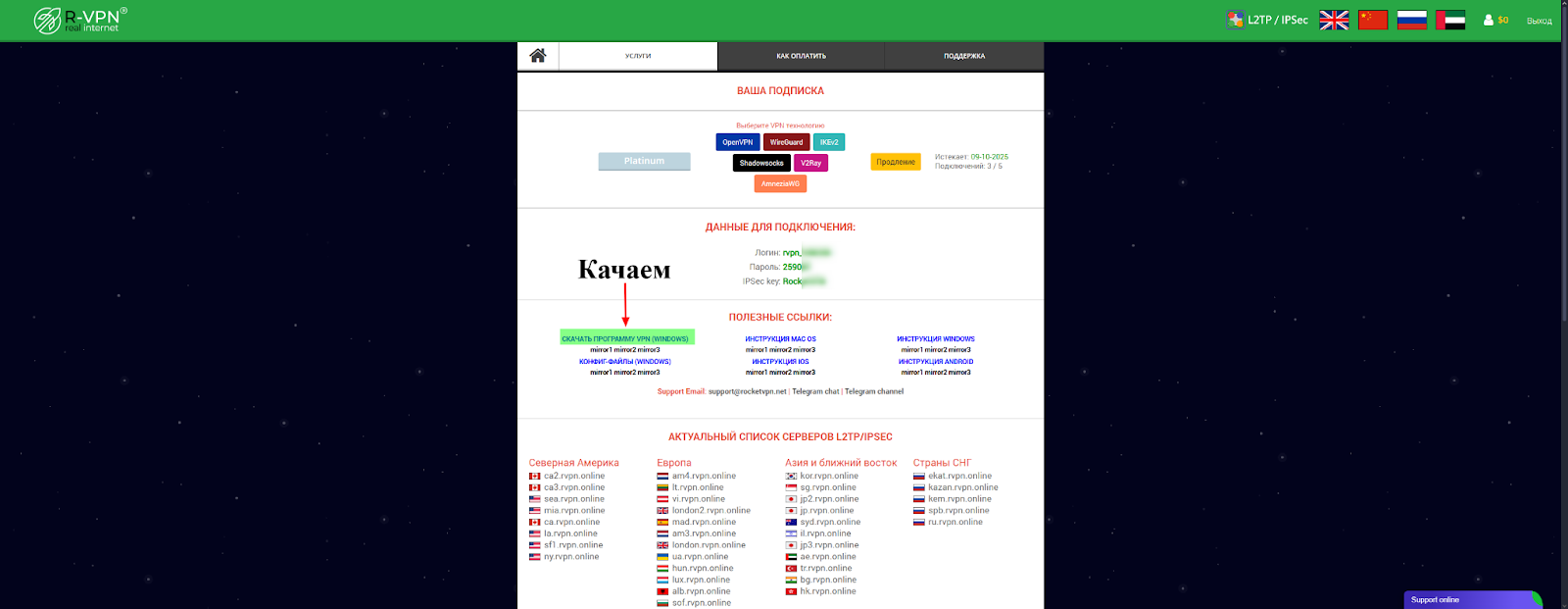
1. Download the archive with the program installation files from the ru.rvpn website.
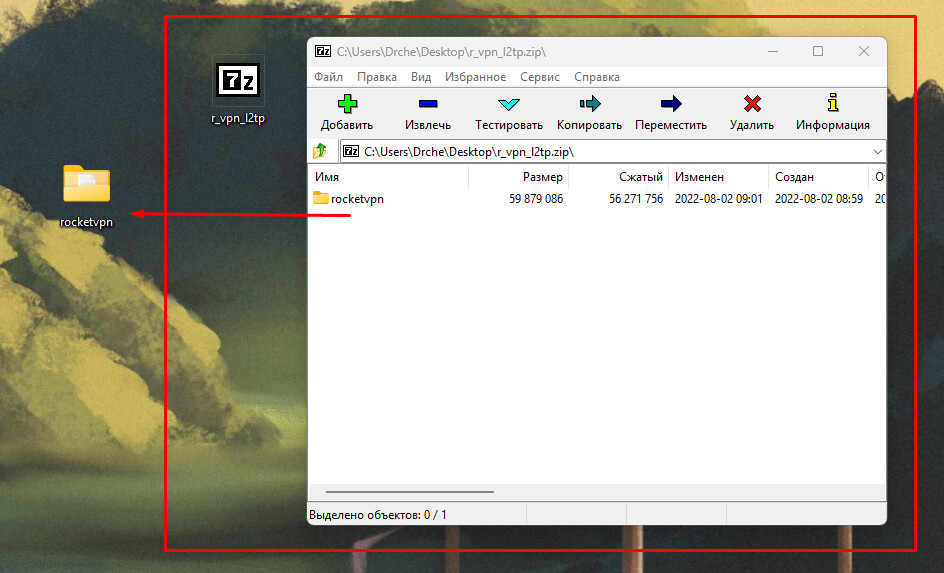
2. Extract the archive.
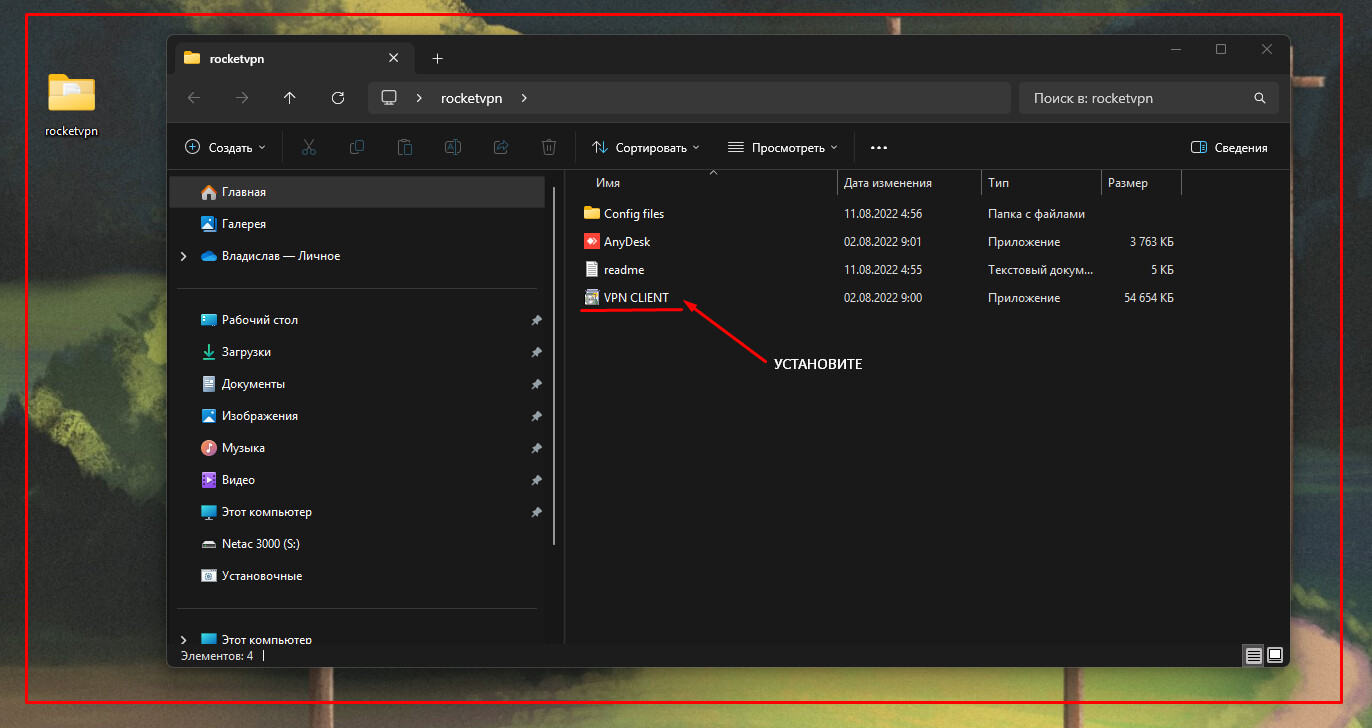
3. Install the «VPN CLIENT» program by opening the installer and clicking next - next - next.
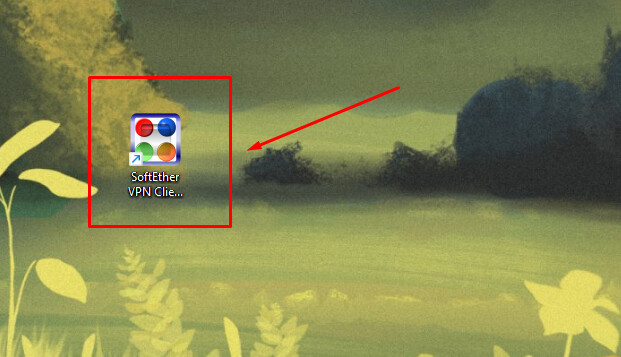
4. A new program SoftEther VPN Client Manager will appear on your computer.
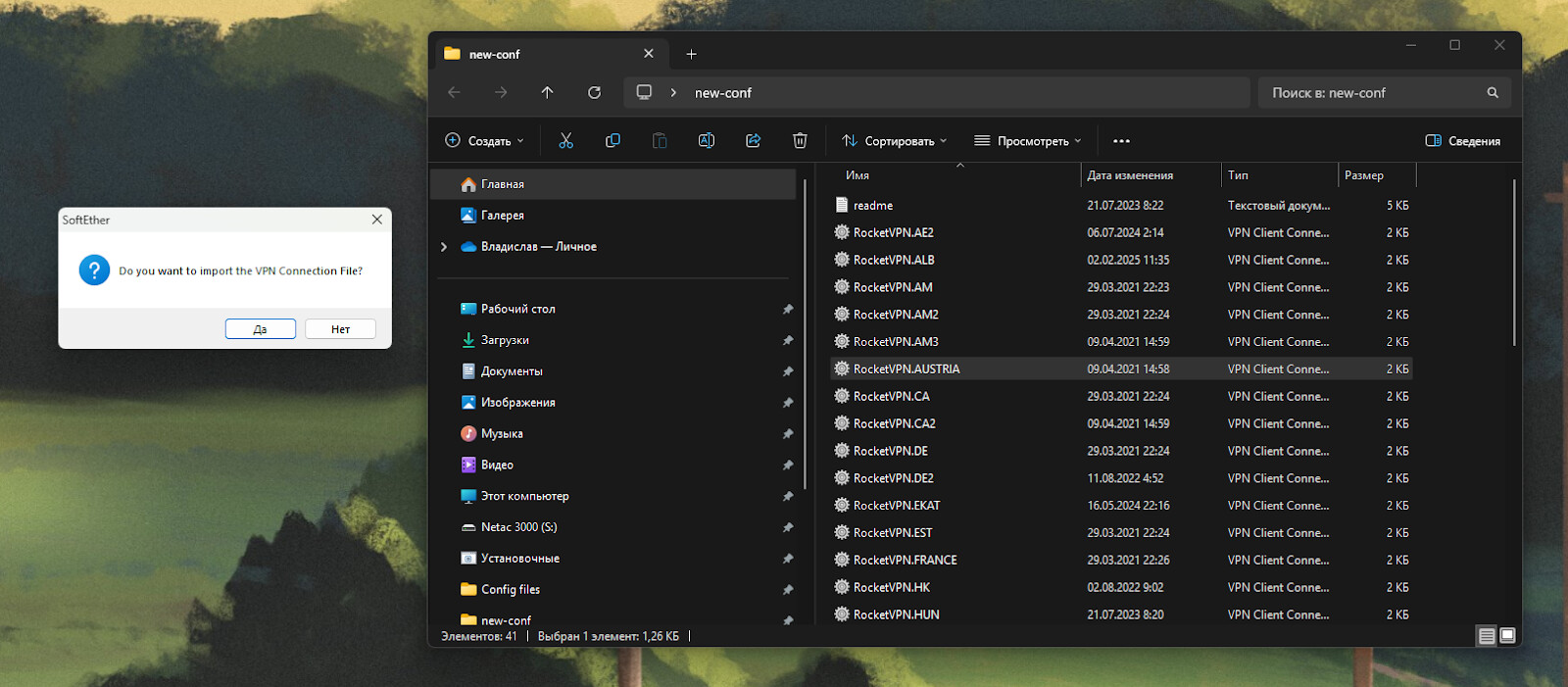
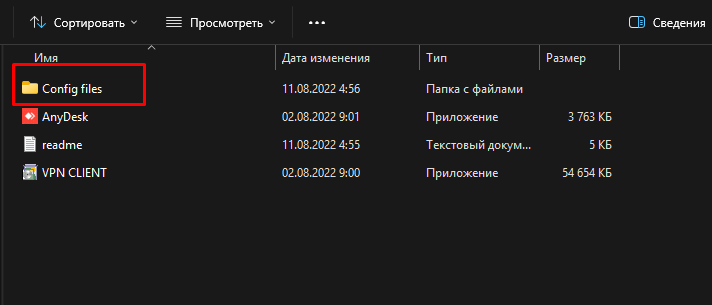
5. In the same folder that we extracted from the archive and from which we installed the program — there is already a folder with available configurations for connection.
You can also download fresh configurations from the website. When downloading from the website — extract the configuration folder. There is only one there.
6. Configurations are files for connecting to different countries. Select the necessary one and double-click on it. In the window that appears, confirm the addition of the config file to the program by clicking «Yes».
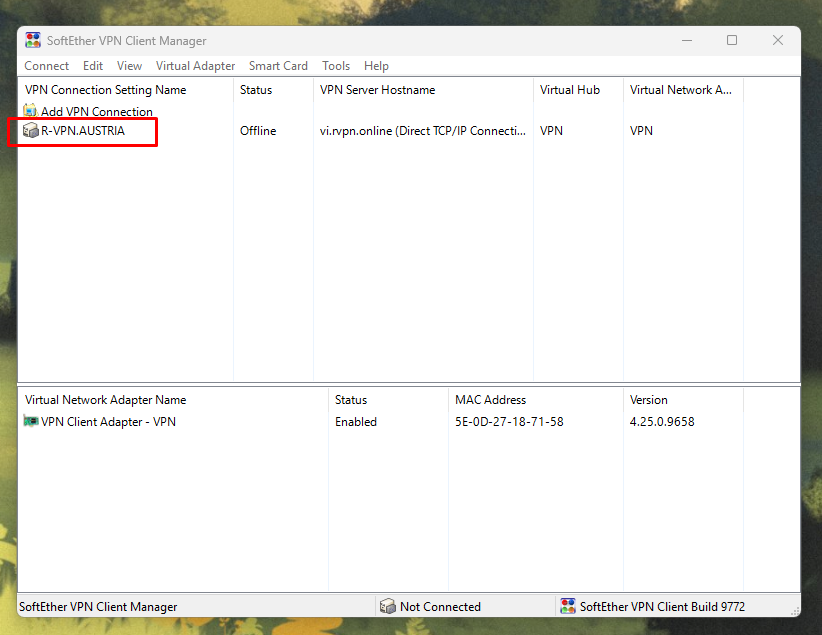
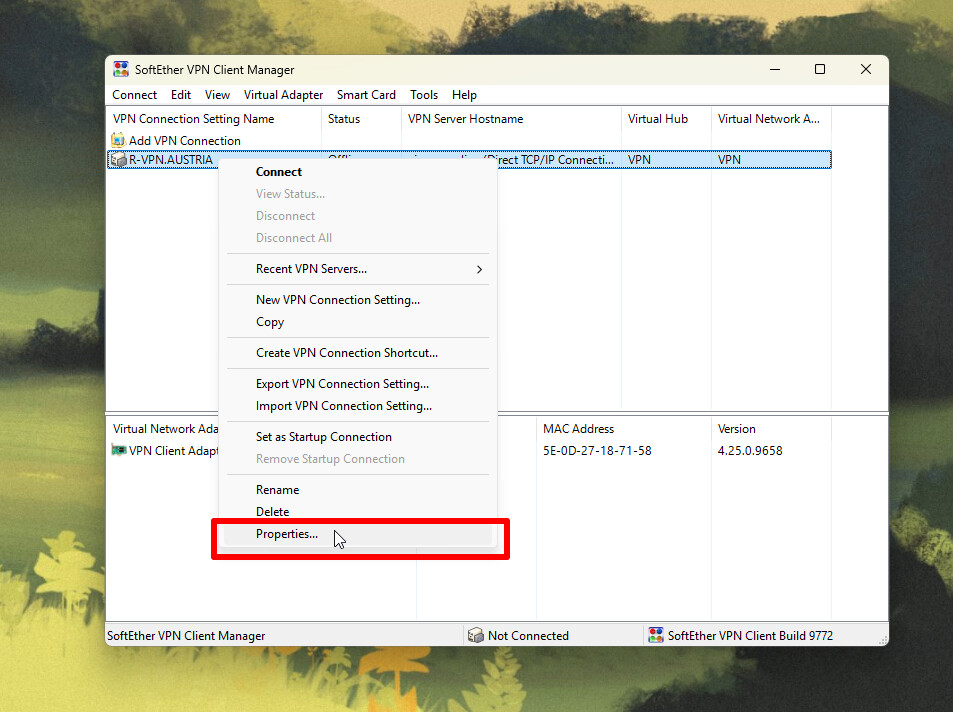
7. In the SoftEther VPN Client Manager program window, which will open automatically, you will see the connection option you selected in the previous step.
8. Right-click on the selected file and select «Properties».
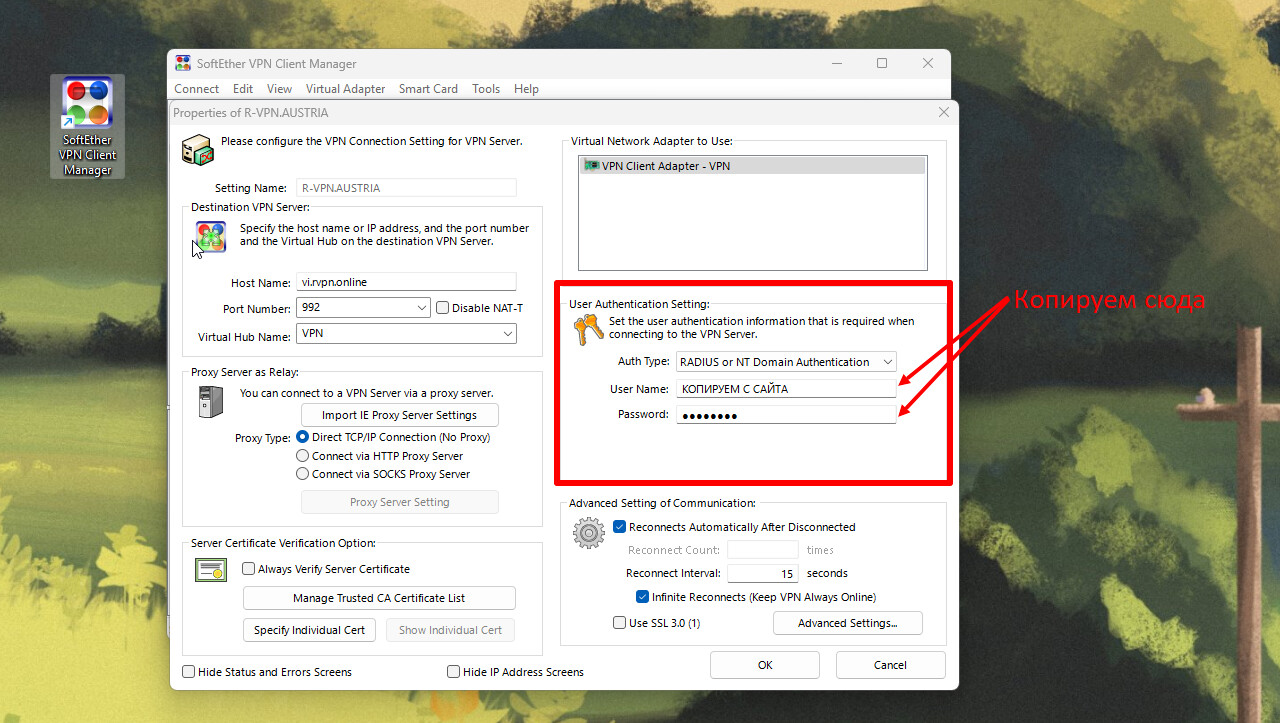
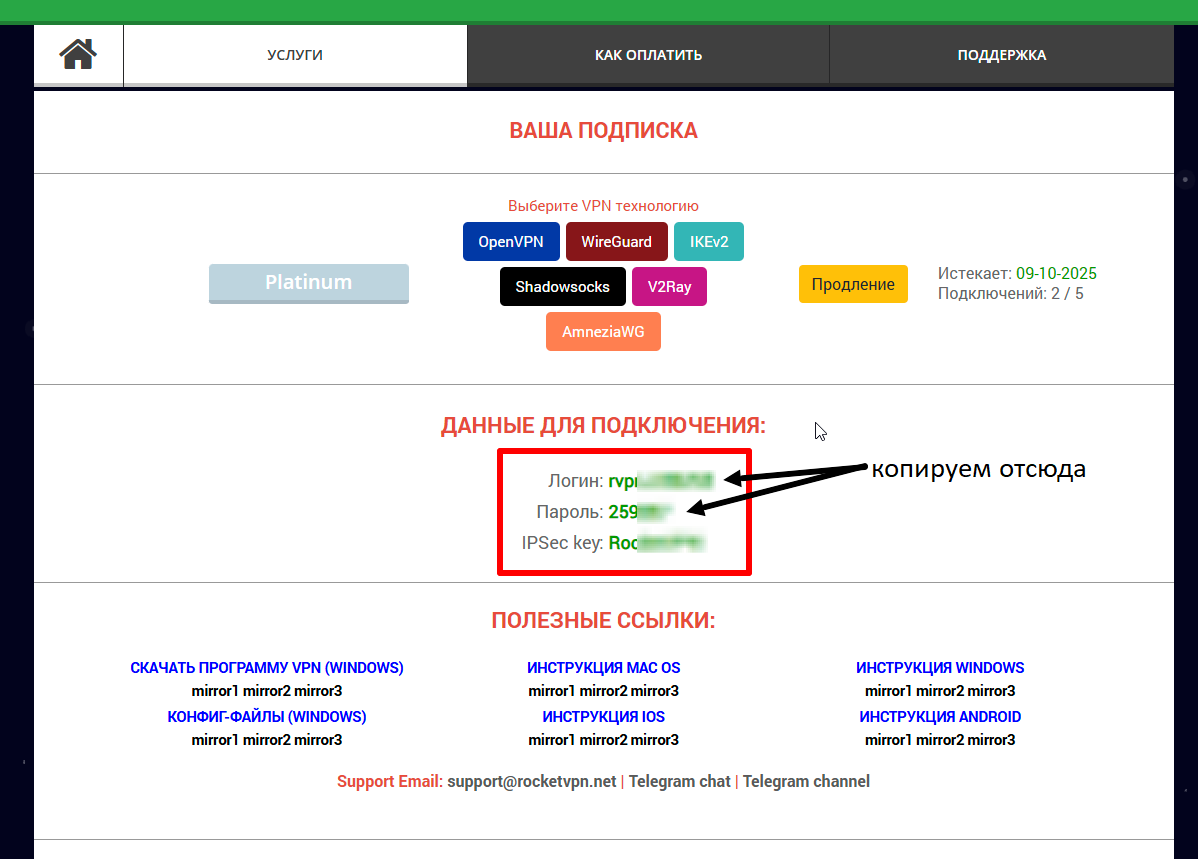
9. In the window that opens, enter your login and password in the necessary fields by copying them from the website.
10. Done. To connect, double-click on the selected VPN config. You can also skip steps 8 and 9 by opening the config file with a double-click and entering your login and password in the window that appears. Don’t be alarmed by the loading bar — it doesn’t affect anything.