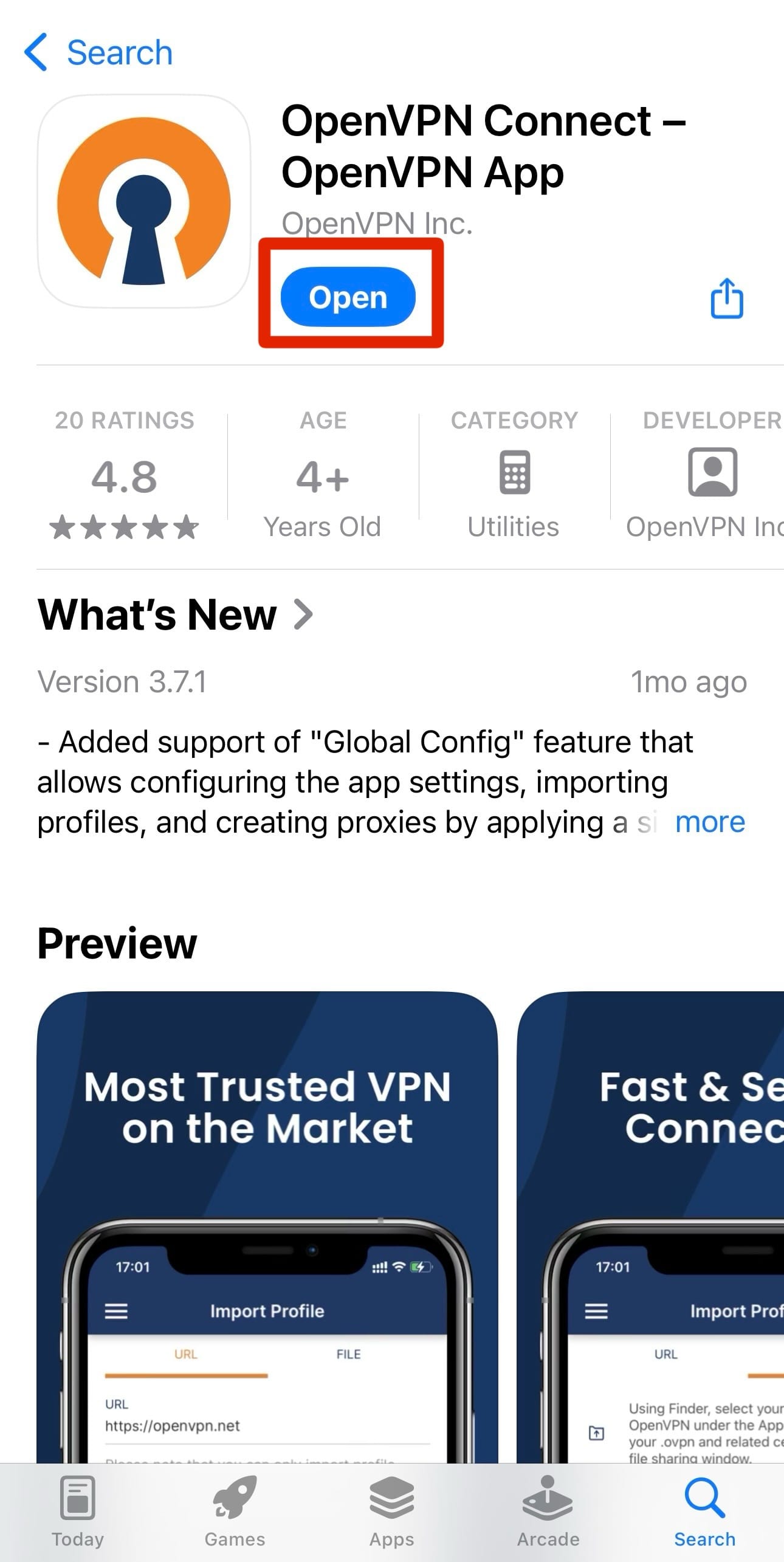
1. Download the OpenVPN Connect application from the AppStore.
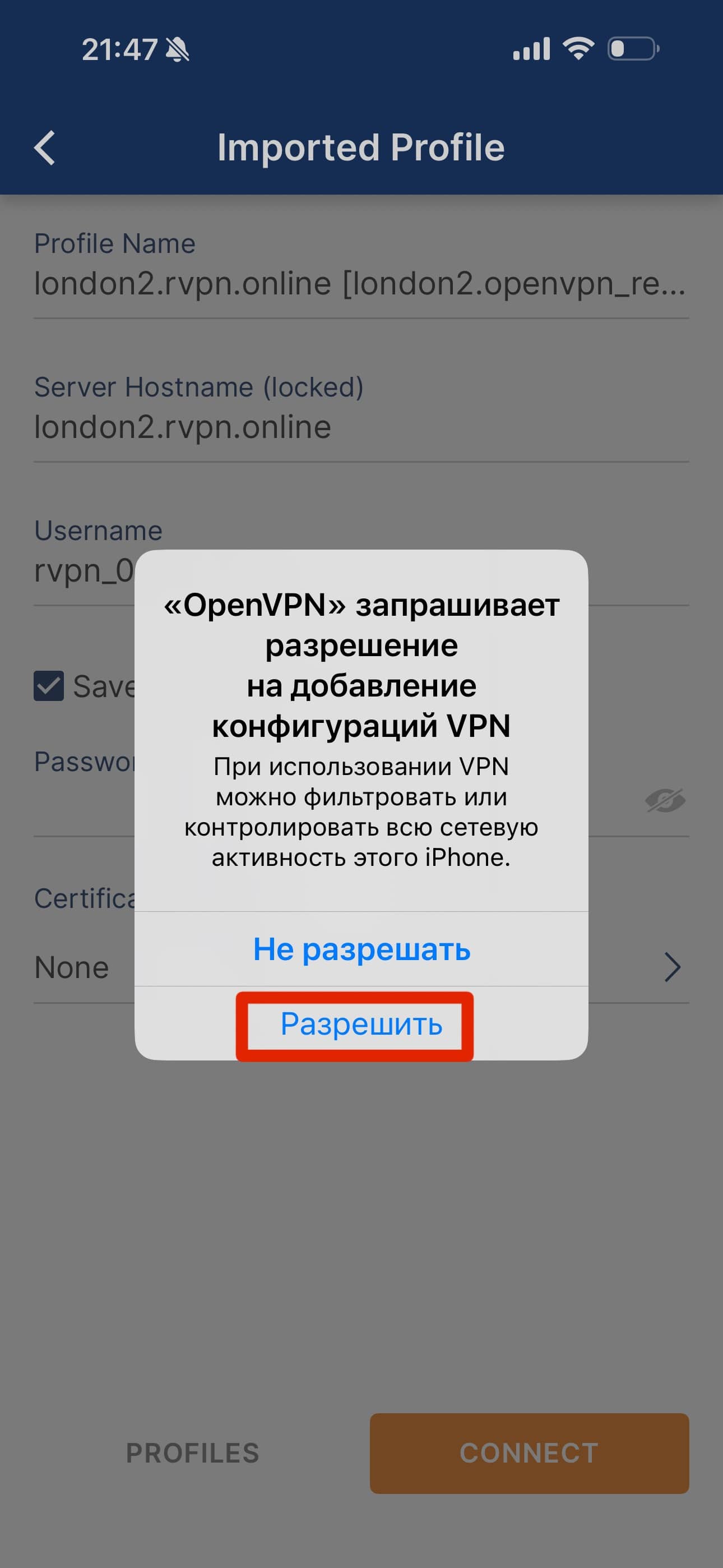
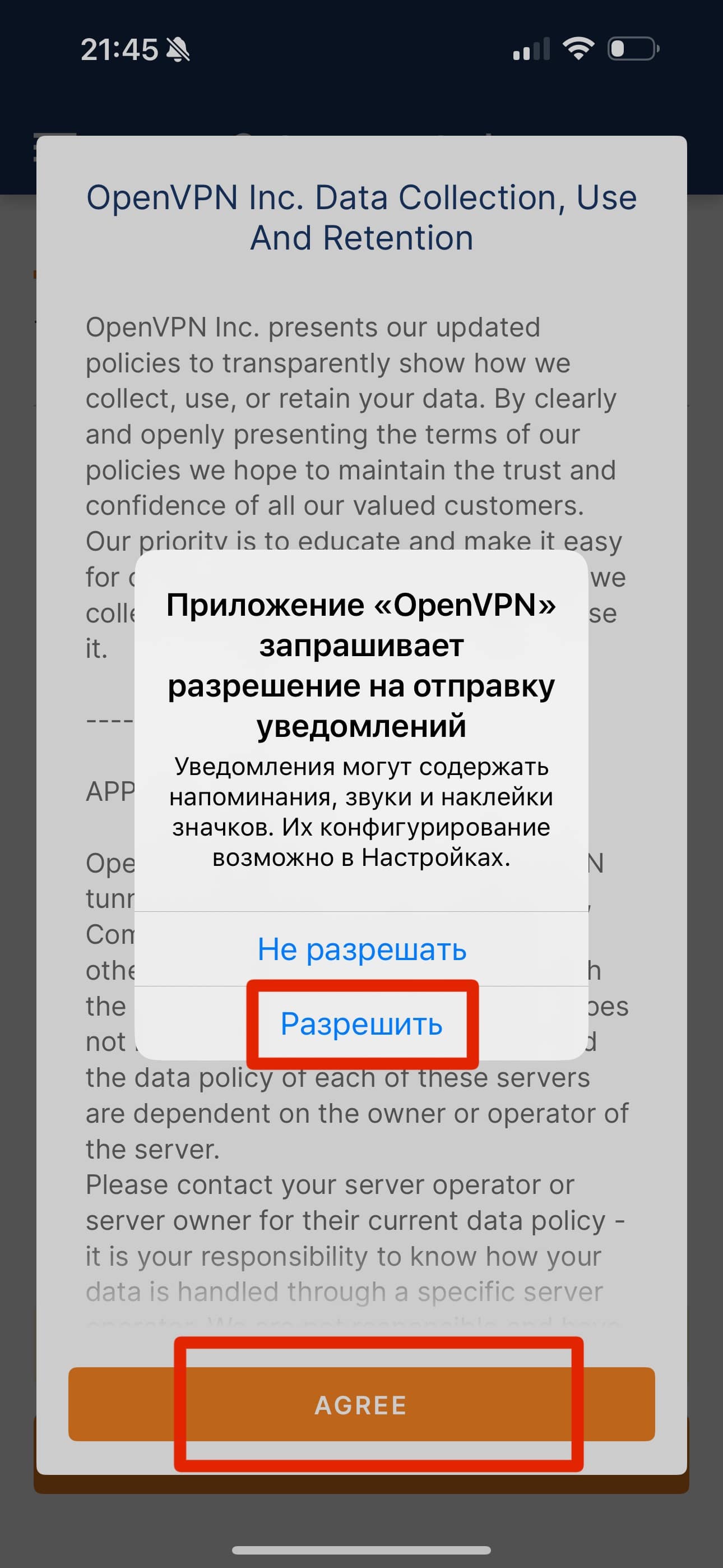
2. When you first launch the application, you need to tap “Allow” in the “Connection Request” popup window.
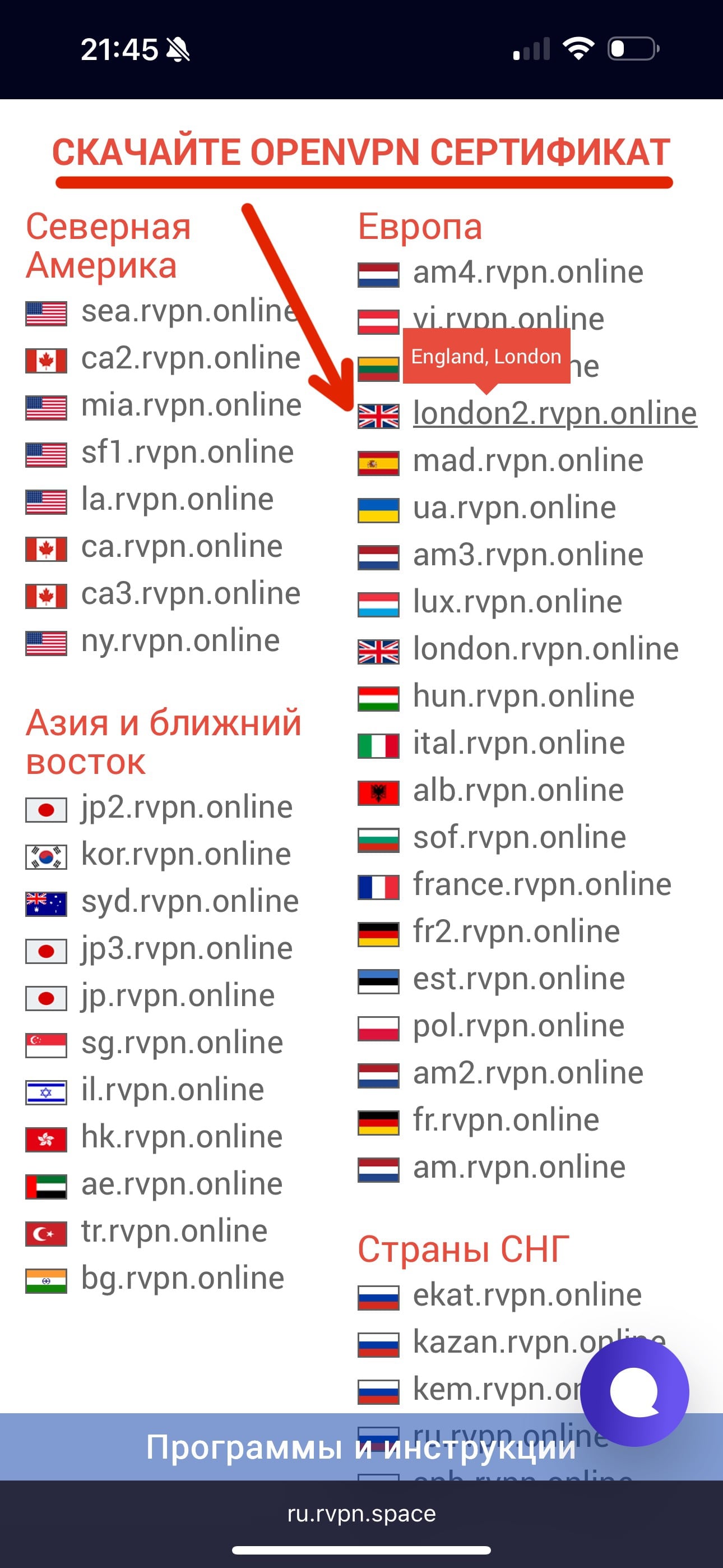
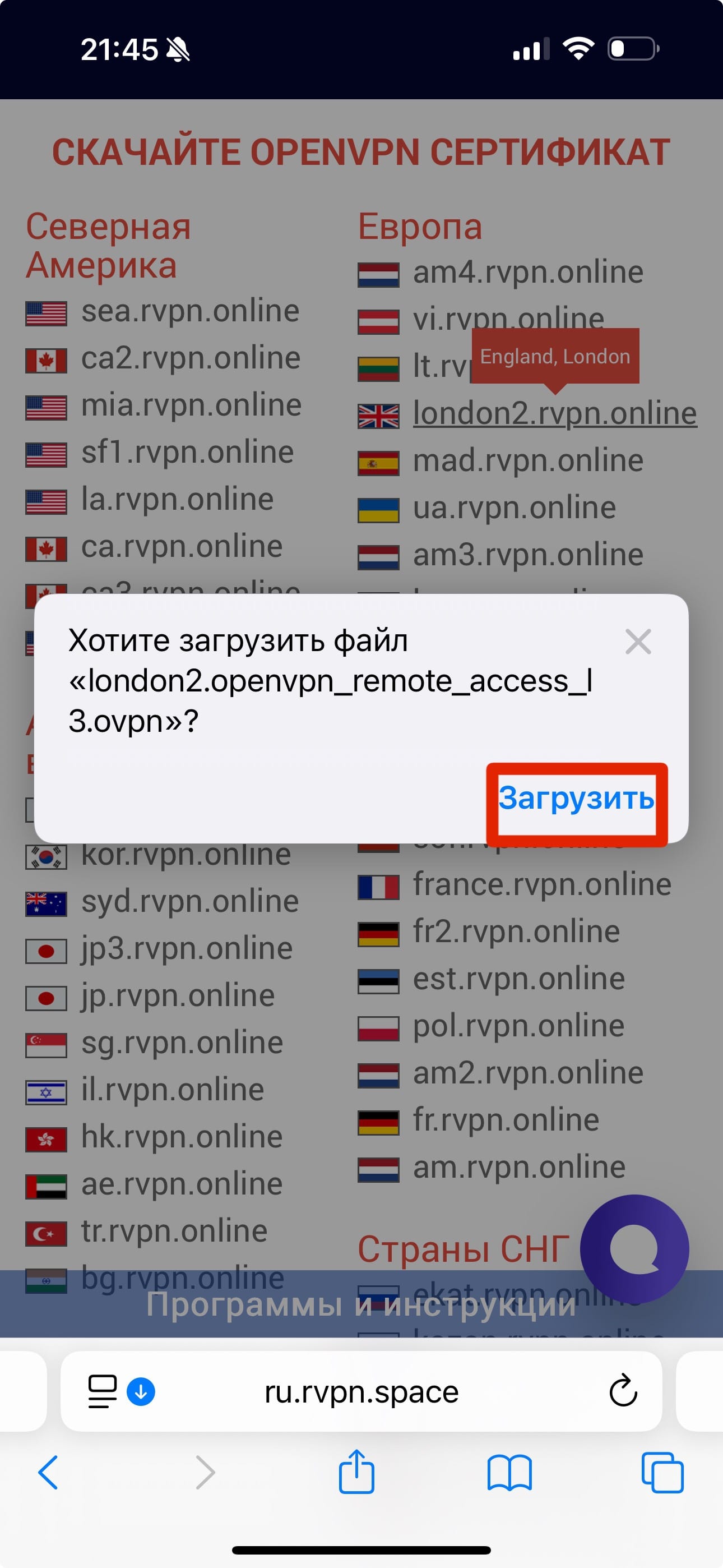
3. On the website ru.rvpn, go to the “Download OPENVPN Certificate” section, select the desired server location, and tap “Download”.
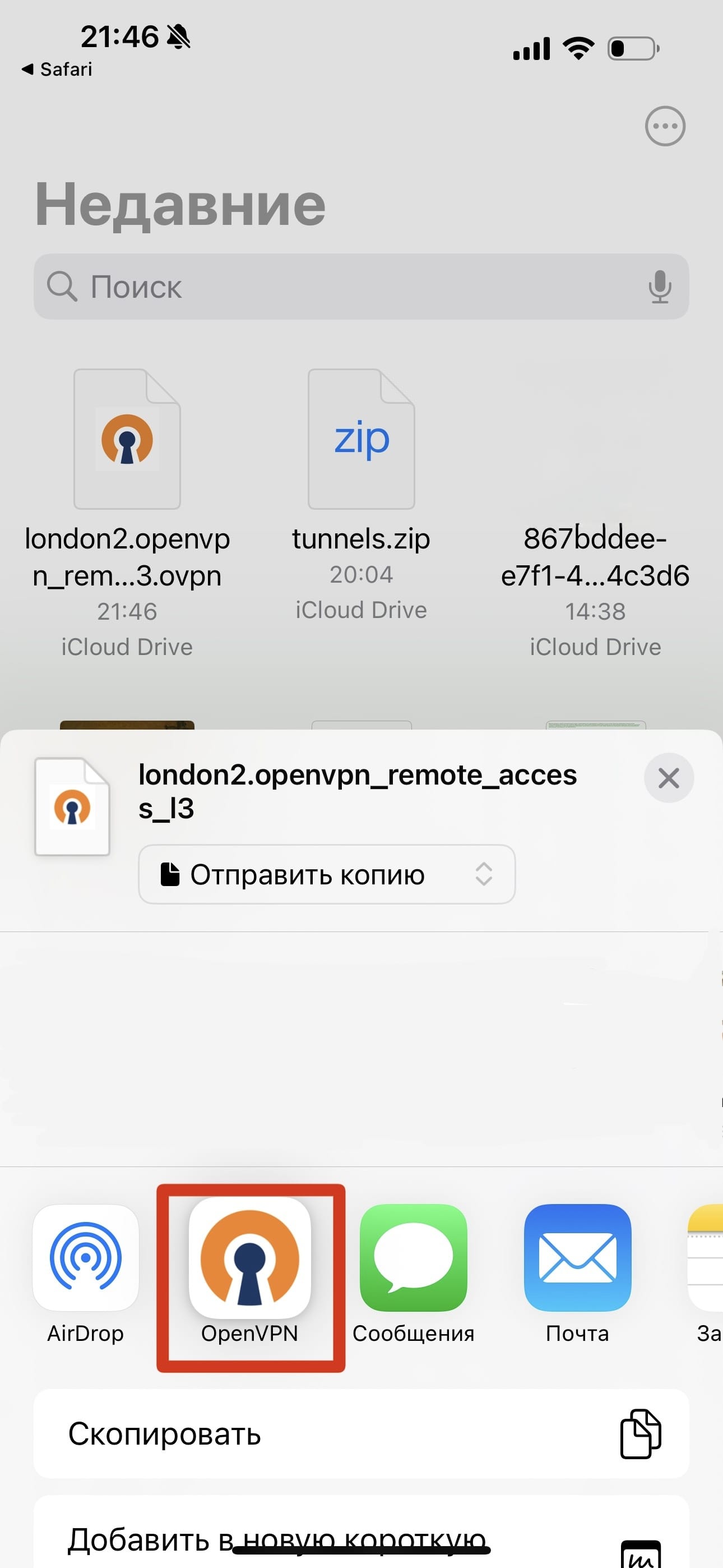
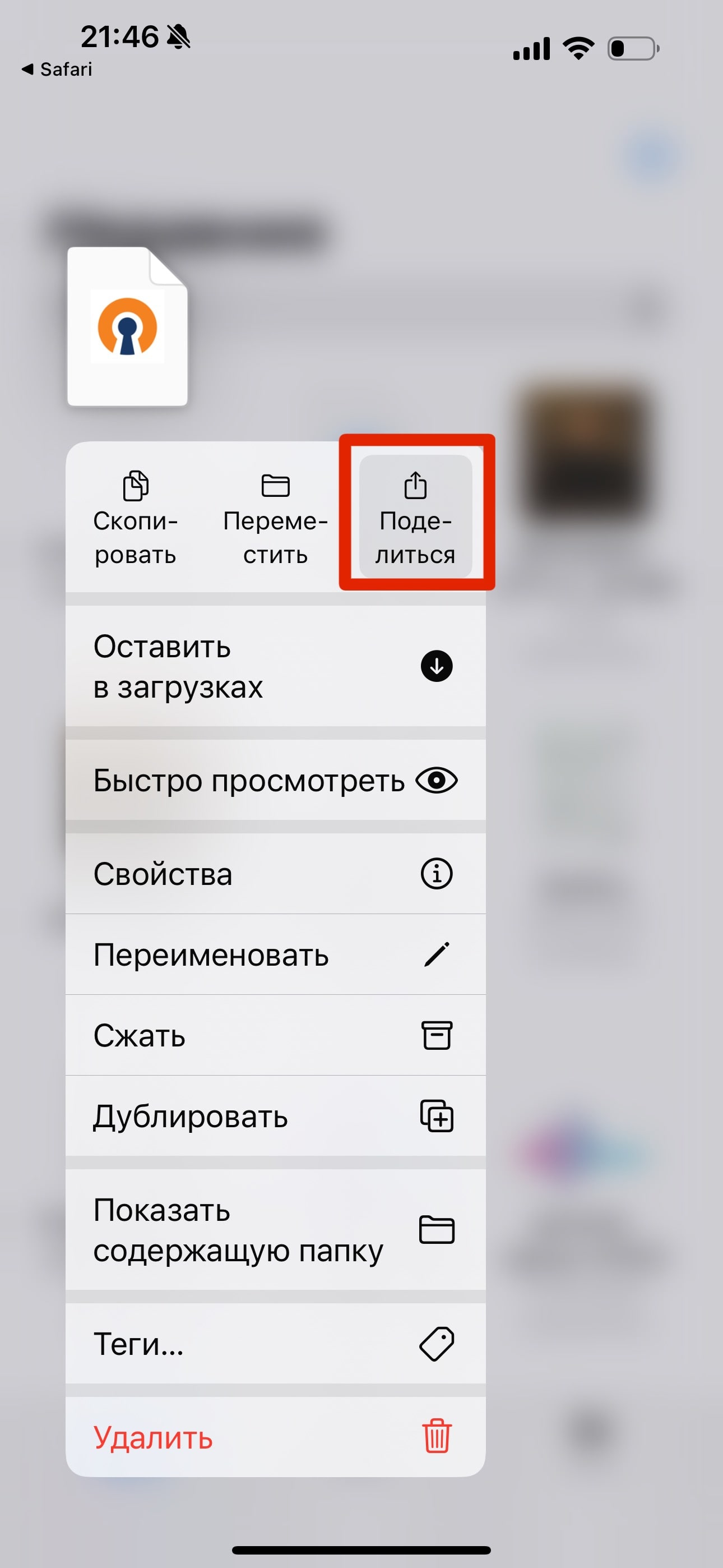
4. In the “Files” application, find the downloaded tunnel and long-press the “Share” button, then select “Open VPN” from the list of applications.
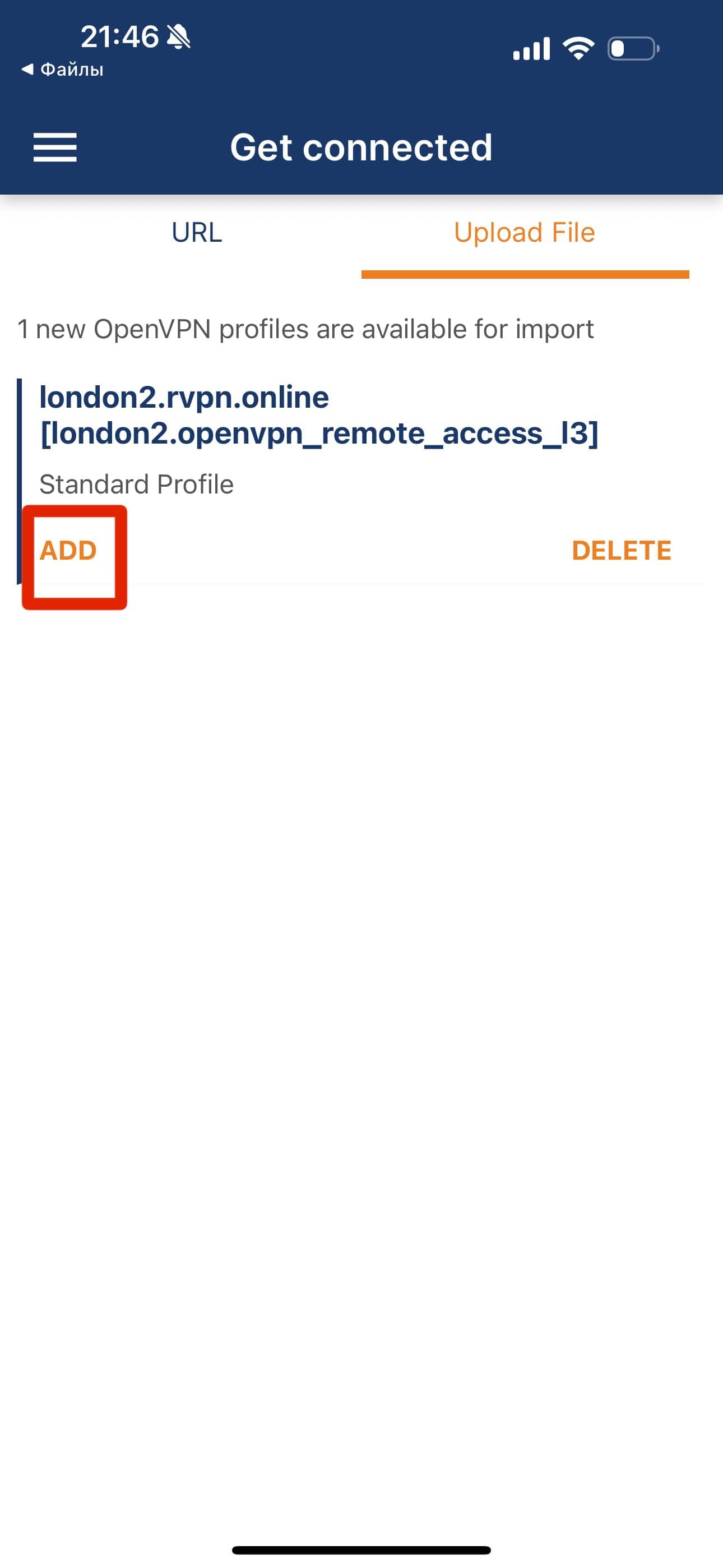
5. After the application opens, tap the “Add” button.
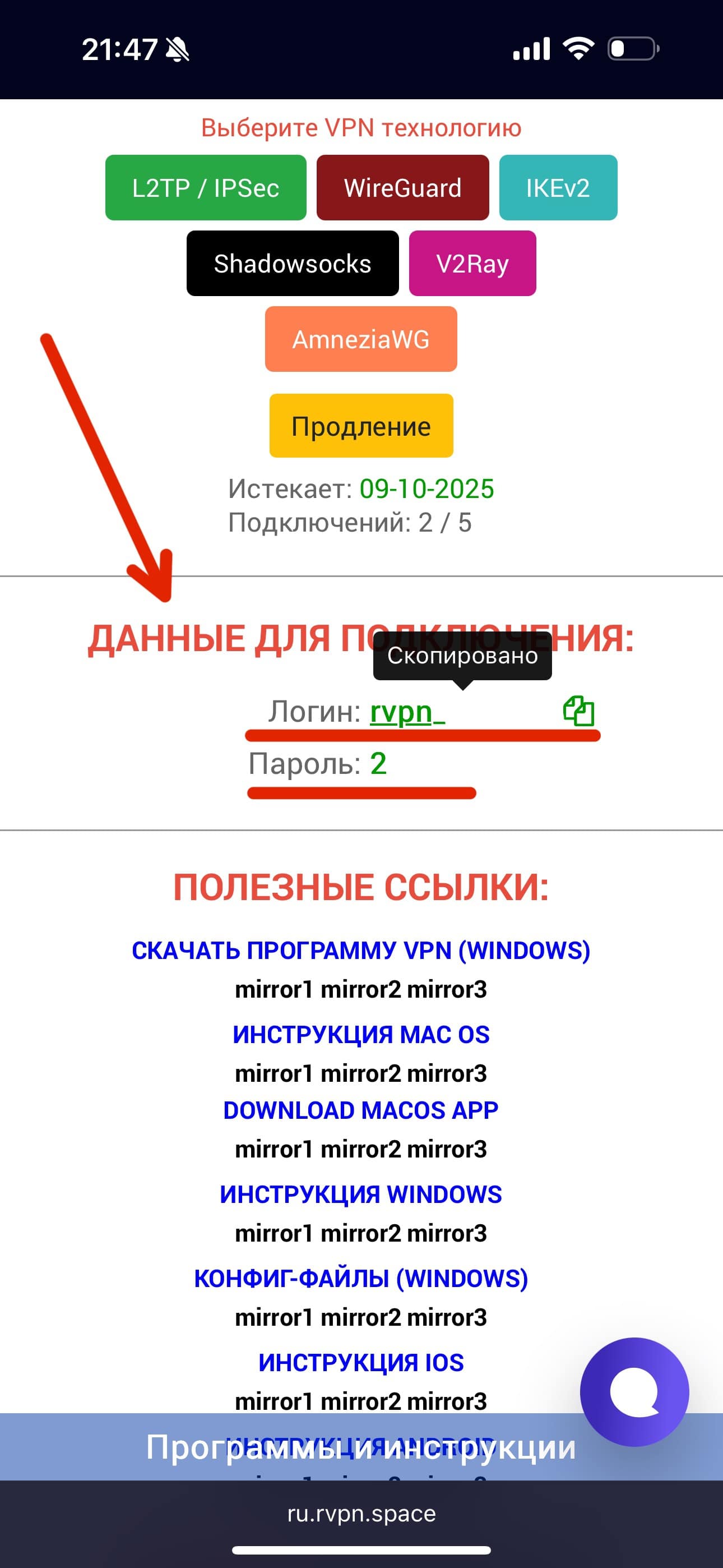
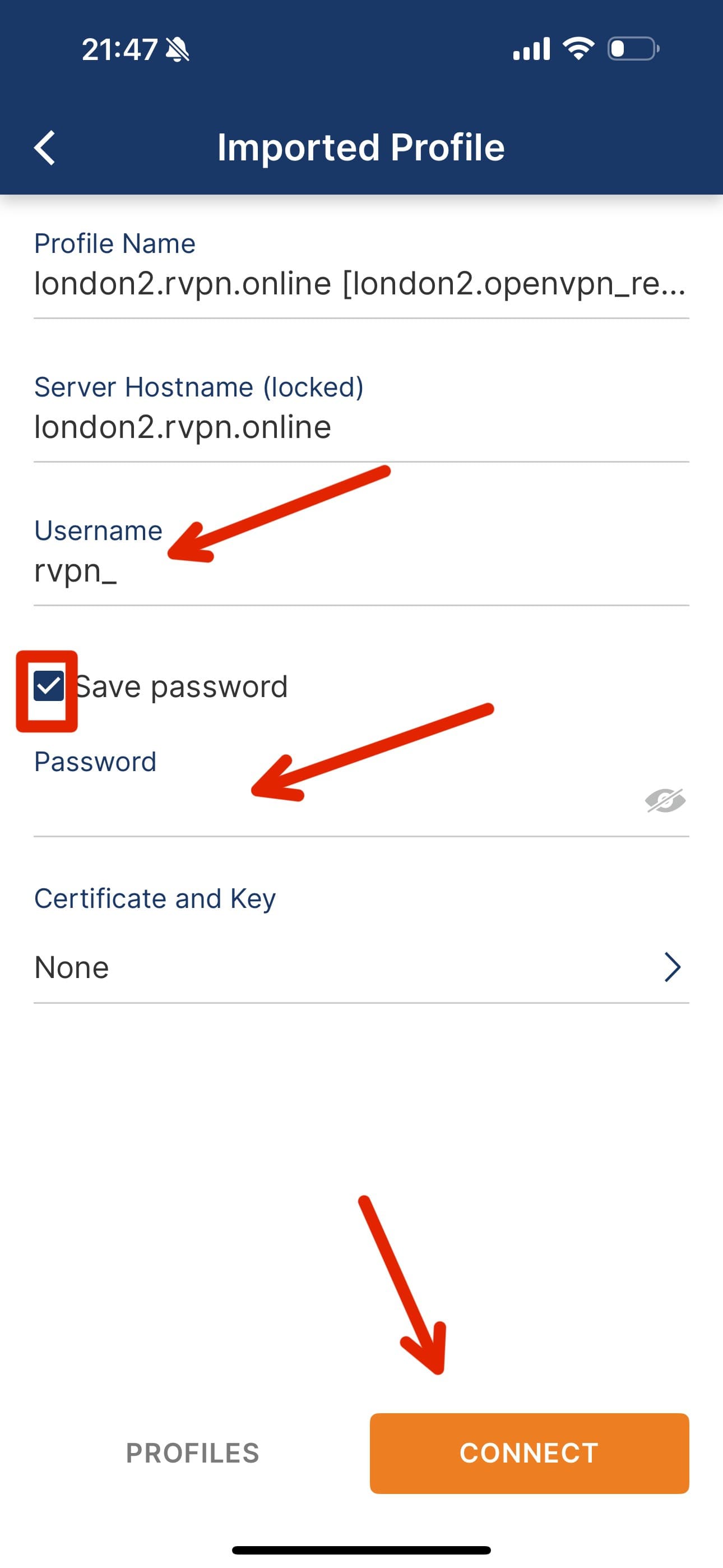
6. In the “Username” field, enter the login credentials shown on the rvpn website. Check the “Save password” checkbox, then enter your password in the “Password” field that appears.
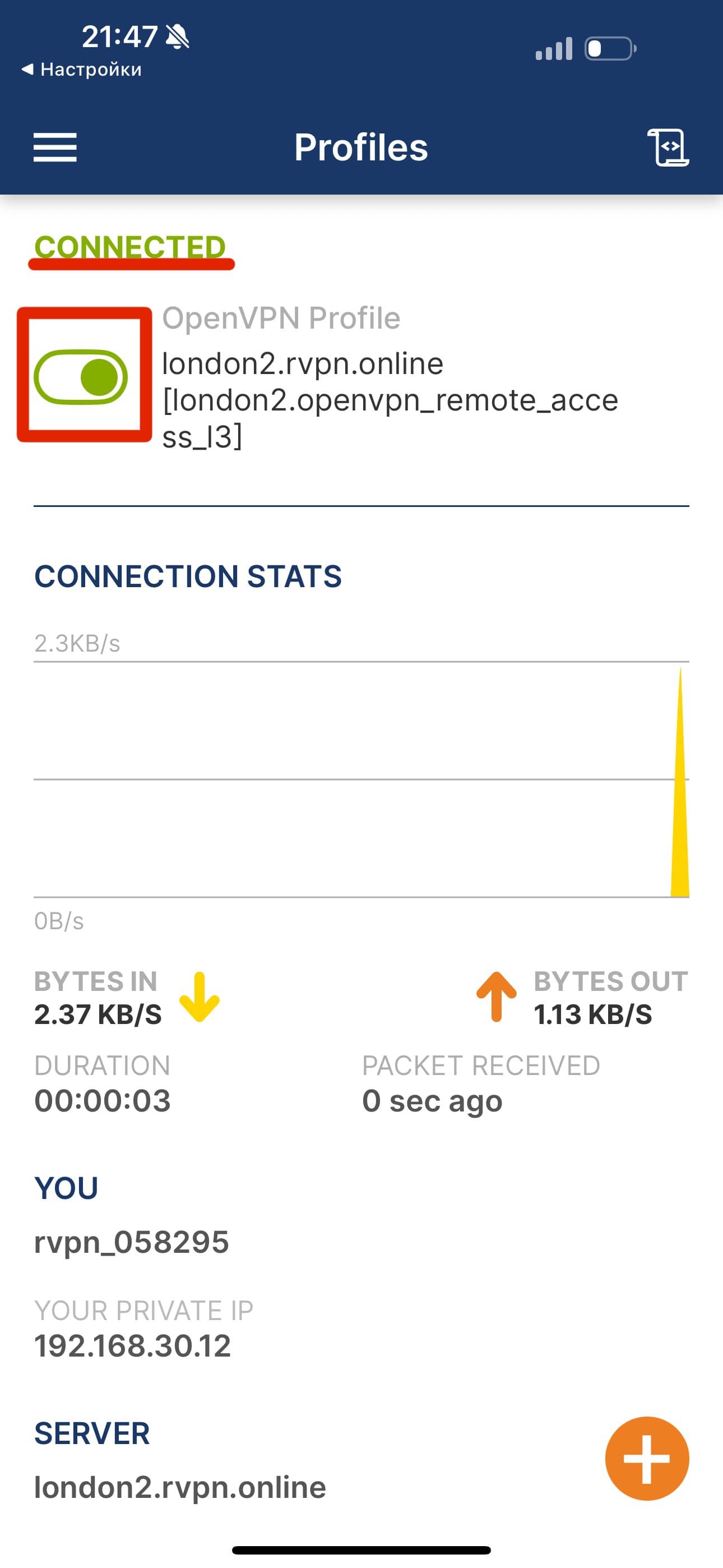
7. Tap “Allow” in the popup window. To enable the VPN, tap the toggle switch to move it to the “ON” position and it will light up.