1. Download the program from the ru.rvpn website.
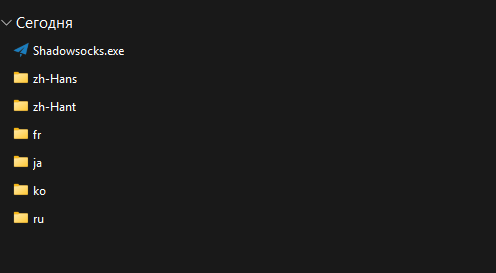
2. Extract the archive and in the folder select the “Shadowsocks.exe” file by double-clicking on it to launch it.
3. You can also open it through the icon in the Windows taskbar in the lower left corner of the screen.
4. On the ru.rvpn website in the “Connect to Server” section, click on the desired server location.
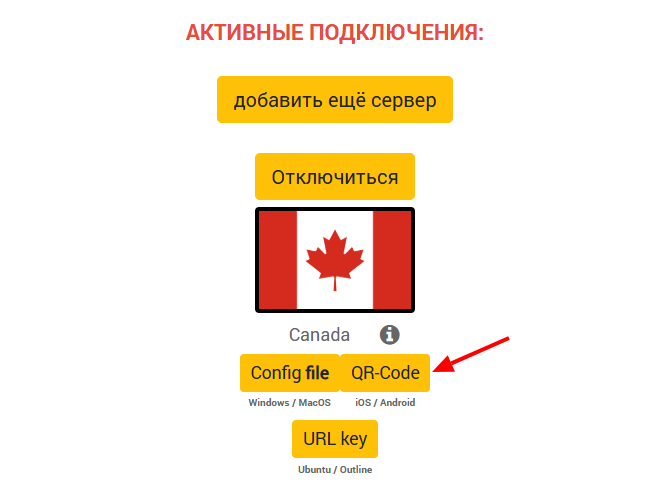
5. On the ru.rvpn website in the “Active Connections” section, click the “QR Code” button.
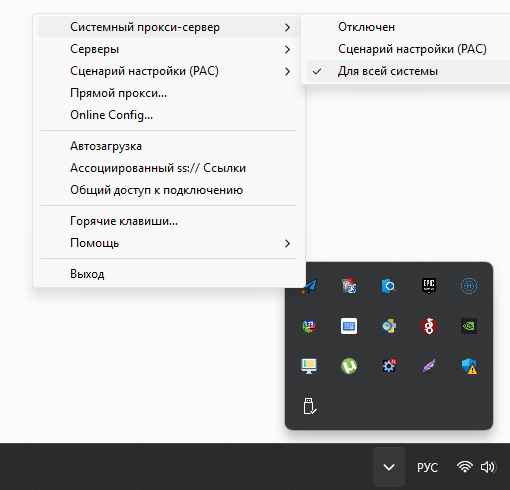
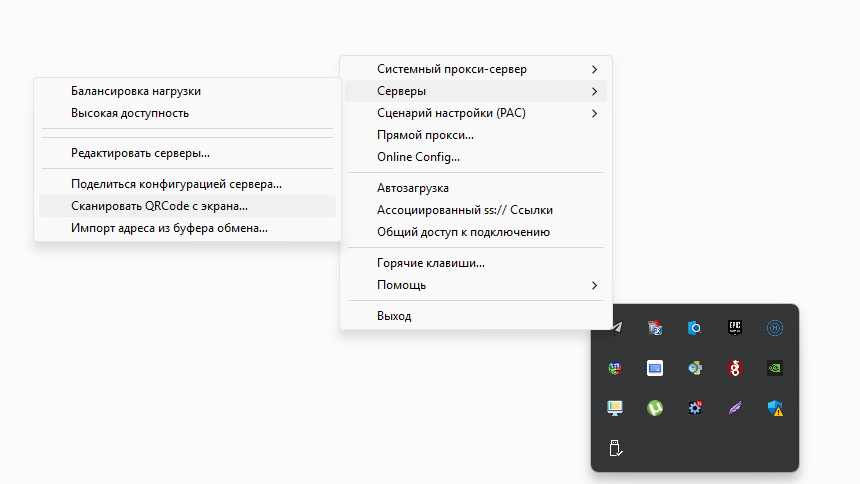
6. Right-click on the airplane icon in the Windows taskbar in the lower left corner of the screen, hover over “Servers” and select “Scan QR Code from Screen” in the dropdown list.
7. In the window that appears, click “OK”.
8. Right-click on the airplane icon in the Windows taskbar in the lower left corner of the screen, hover over “System Proxy” and select “For the Entire System” in the dropdown list.
9. If needed, you can add multiple tunnels.