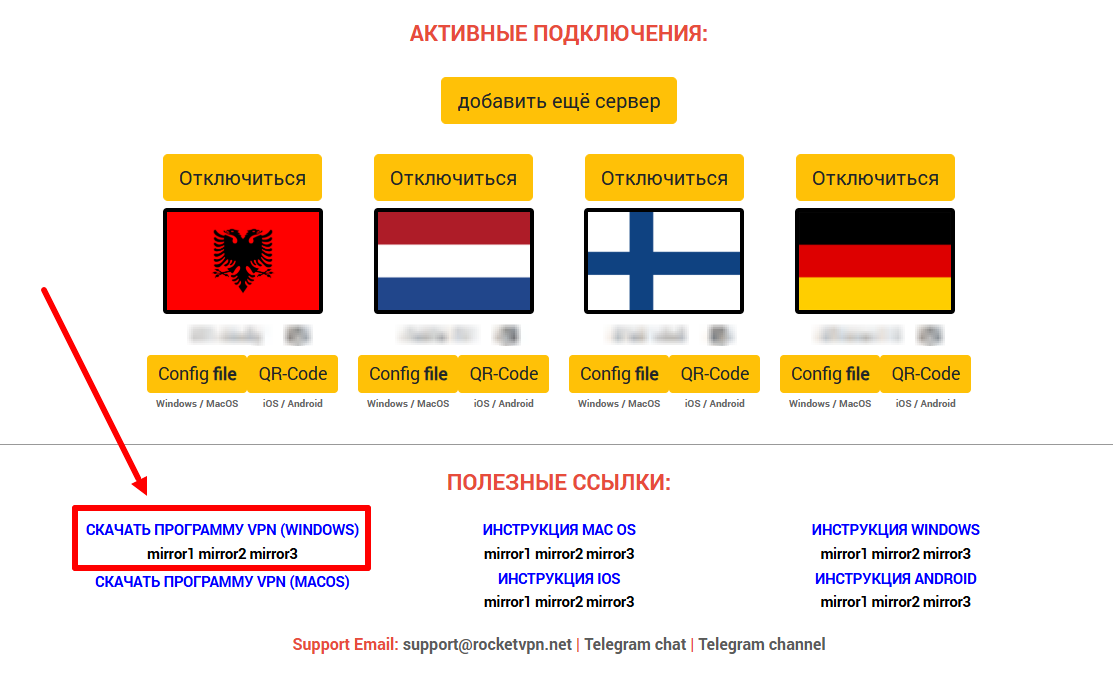
1. Download the archive with the program installation files from the ru.rvpn website.
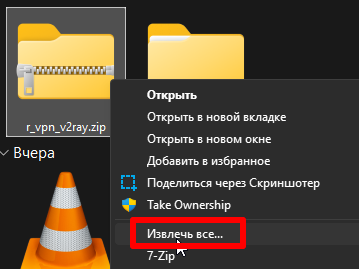
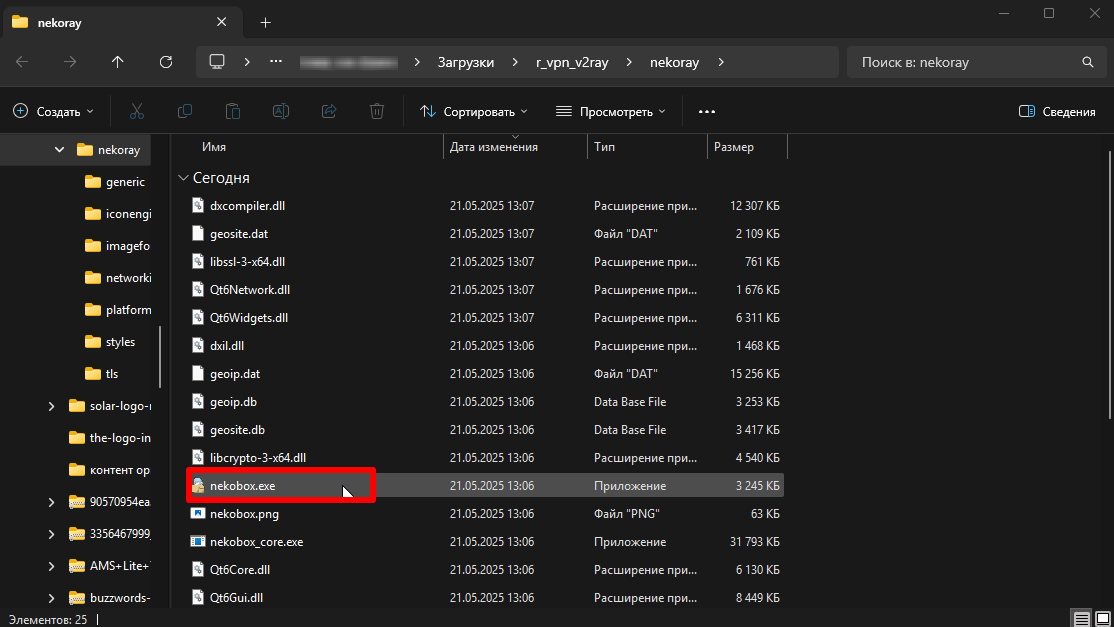
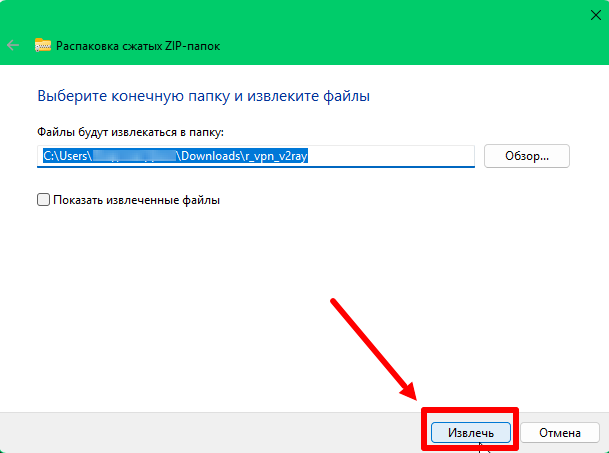
2. Double-click the file to extract the archive and launch the program.
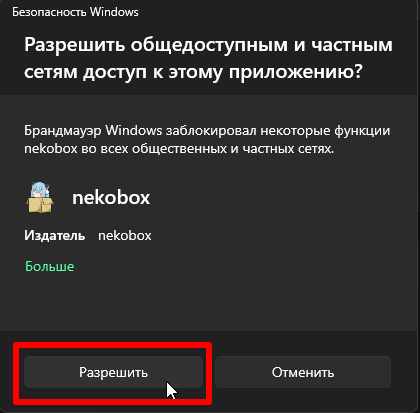
3. In the pop-up window, select “Allow”.
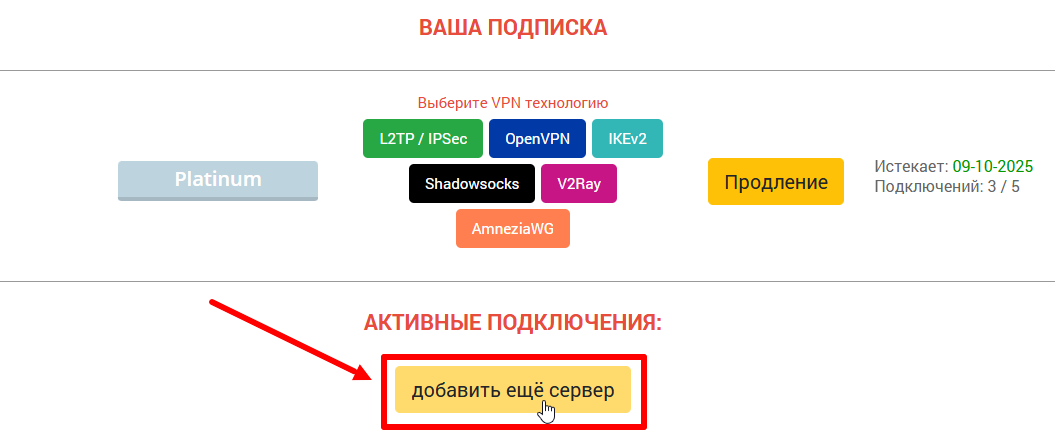
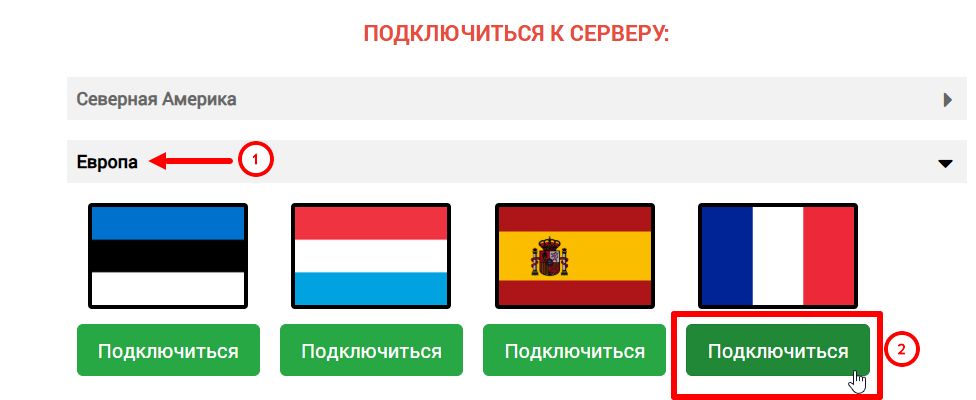
4. On the ru.rvpn website, click “Add Server” and select the desired location and country by clicking “Connect”.
5. Rename the configuration if needed to avoid confusion when connecting other devices.
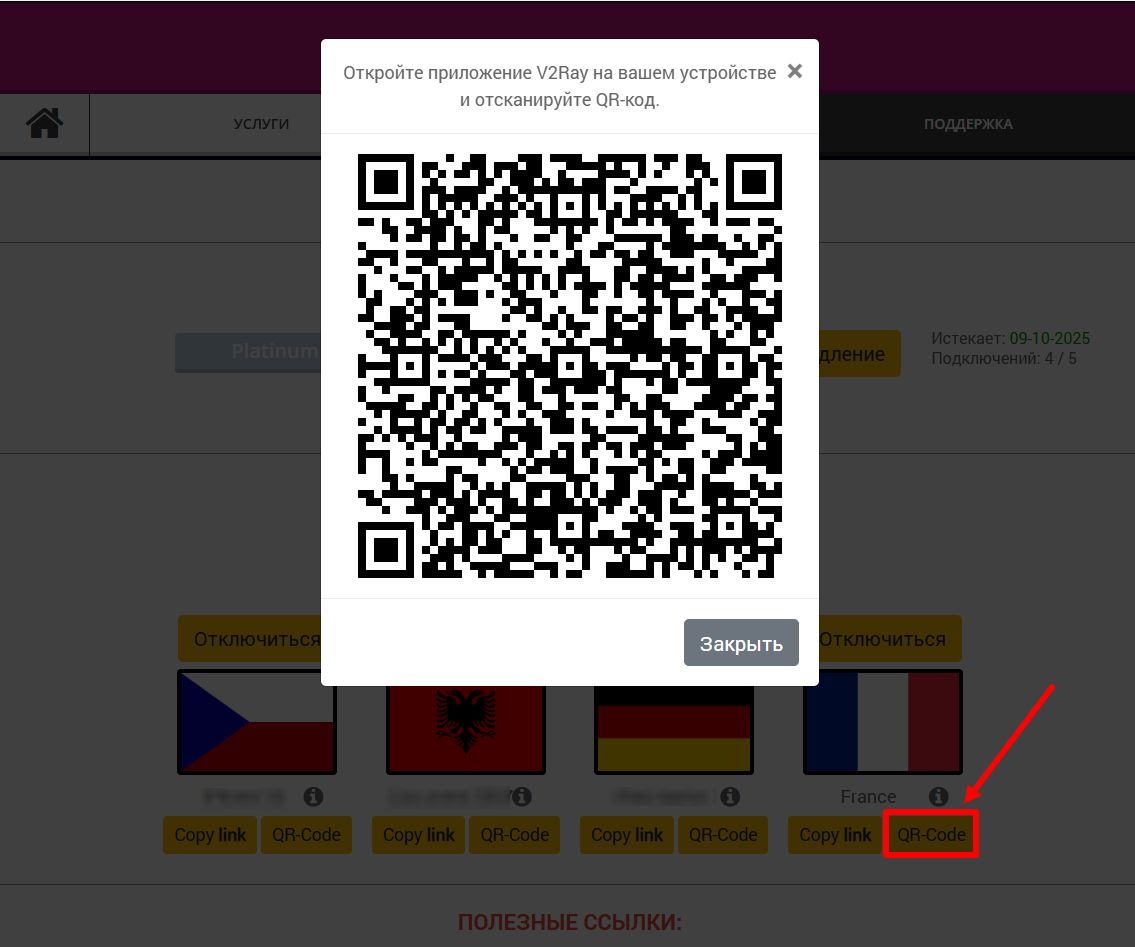
6. On the website, click the QR-code button to save the tunnel.
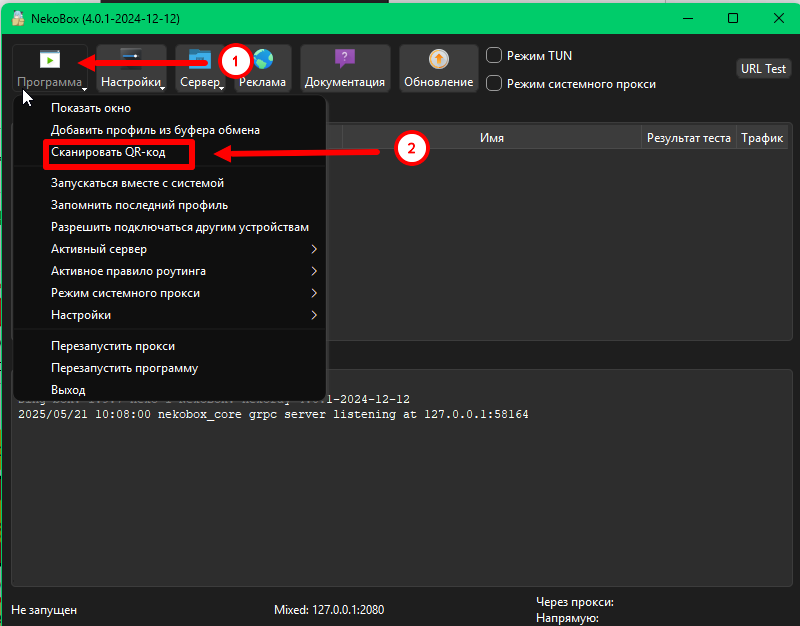
7. In the application, click the “Program” button and select “Scan QR Code” from the dropdown menu. Go to the ru.rvpn website so the QR-code can be scanned from the screen. Make sure other windows don’t cover the code.
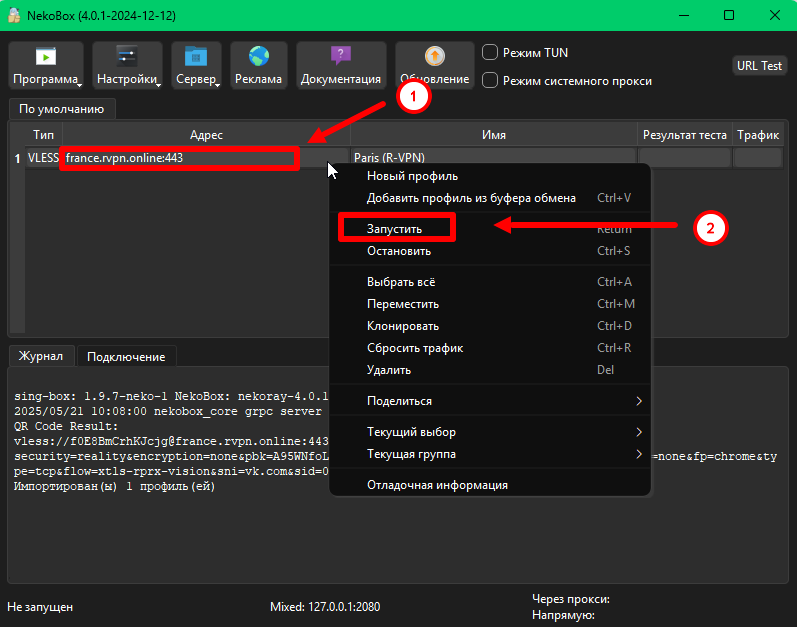
8. After the tunnel is added to the application and appears in the list, right-click on it and click the “Start” button.
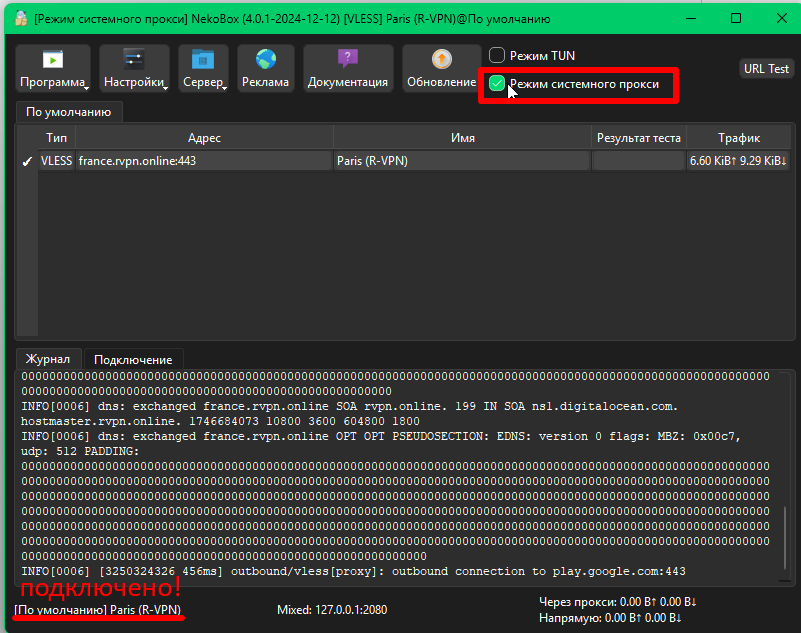
9. At the top of the window, check the box next to “System Proxy”.
10. If needed, you can add multiple tunnels.